
How to Choose a Dell PowerEdge R760xa GPU Server?

Choosing a Dell PowerEdge R760xa GPU Server starts with the workload, not the product name. AI researcher Andrew Ng’s often-cited observation, “AI is the new electricity,” captures why accelerated computing matters. But it does not tell you which server configuration to buy. That decision depends on the models, software, and data your team actually runs.

Look closely at GPU type and count, memory capacity, CPU balance, storage bandwidth, and network requirements. Then check the details that can disrupt a real deployment: rack depth, power delivery, cooling, and available electrical capacity. A server with more GPUs may look impressive on paper. It may also sit idle if storage feeds data too slowly or the workload cannot use those GPUs efficiently. Small details matter.

The Dell PowerEdge R760xa is built for GPU-accelerated workloads, but the right configuration depends on your operating conditions and growth plans. Compare the manufacturer’s current technical specifications with your software requirements, and confirm support needs with Dell or an authorized partner. Ask about validated configurations, warranties, and future expansion. I would not pretend a spec sheet settles everything. Rack space, noise, and power limits can change the answer. The useful choice is the one your team can deploy, cool, monitor, and keep busy—not simply the one with the largest headline numbers.
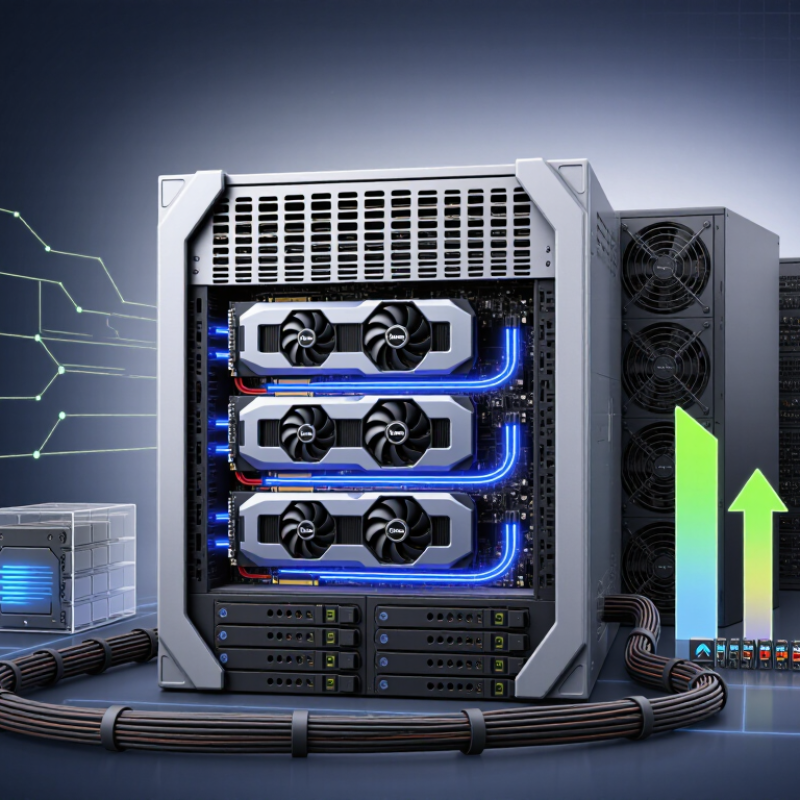
How to Choose a Dell PowerEdge R760xa GPU Server?

Identify Your GPU Workload and Performance Requirements

Start with the job the server must do, not the number of GPUs it can hold. Training a large model depends on memory capacity, interconnect bandwidth, and sustained compute performance. Image rendering may favor different GPU features than scientific simulation. For inference, estimate requests per second, response-time targets, and how many users may arrive together. Be specific. A vague workload description leads to vague hardware choices.

Check the memory footprint of your models, datasets, and active batches. If a model barely fits in GPU memory, larger batches may be impossible, even when the processor count looks impressive. Record the software framework, numerical precision, and expected workload size. Then test representative jobs on comparable hardware. Measure actual processing time and GPU utilization; peak specifications alone can mislead. Small benchmark. Real data. Better evidence.

Performance is not only about GPUs. Confirm that the CPU, memory, storage, and data network can keep them supplied. A slow dataset pipeline can leave expensive accelerators idle. Also assess power, cooling, and rack limits under sustained load, not just during a brief test. I have seen plans change after teams measured real traffic; early estimates are often wrong. Leave some capacity for growth, but do not pay for headroom without a plausible use case.

Check GPU, CPU, Memory, and Storage Compatibility

Choose the GPU before ordering other parts. Check its length, height, slot width, power draw, and connector location against the chassis. Leave room for airflow; a card that fits physically may still run too hot under sustained rendering. Verify the required riser and PCIe slot, too. Check the platform’s current configuration guide rather than relying on a product listing alone. Small details matter.

Match the CPU to the GPU workload and available PCIe lanes. More cores do not always mean faster GPU processing. For memory, confirm the supported module type, capacity, and population rules, then balance modules across memory channels. Uneven placement can reduce bandwidth. It is easy to overbuy memory and overlook that. For storage, check drive-bay sizes, backplane connections, and support for the chosen NVMe, SAS, or SATA drives. Confirm controller and boot-drive requirements as well.

Review power and cooling with every component installed, not just on paper. Also check firmware and supported configuration records before purchase. A technically compatible build can still feel unbalanced if storage is slow or memory is undersized for the workload. Leave some capacity for growth, but avoid paying for headroom you cannot use.

GPU Interface Compatibility: PCIe x16 Bandwidth

Approximate one-way bandwidth is shown in decimal GB/s; actual throughput may be lower due to protocol overhead. When selecting a GPU, verify that the processor and slot provide the required PCIe generation and lane width. Also confirm card dimensions and power requirements, then check supported memory capacity and storage interfaces against the system specifications.

Assess Power, Cooling, and Rack Infrastructure Needs

A GPU server can place a very different load on a rack than a standard compute node. Start with the exact configuration, including accelerators, processors, memory, and storage. Use its rated power figures, not a generic chassis estimate. Then check whether the rack’s power distribution units and circuits can support the load, including expected peaks. Leave room for safe, accessible cabling. Measure twice.

Cooling needs equal attention. High-wattage components can push warm air into neighboring equipment if airflow paths are blocked. Confirm the server’s intake and exhaust direction, then compare its cooling requirements with the room’s airflow capacity. Keep blanking panels in unused rack spaces, and avoid storing cables across front vents. Airflow matters. A quick temperature check under sustained workload can reveal problems that idle readings miss.

Check rack depth, rail compatibility, weight limits, and clearance for installation and service. Confirm that doors close without pressing against cables or restricting airflow. A common planning mistake is checking power and cooling separately, even though both depend on the final configuration and workload. Revisit those estimates after hardware changes; assumptions age quickly. These checks may feel overly cautious, but correcting a rack constraint after delivery is usually harder than measuring it beforehand.

Choose Networking, Management, and Support Options

For a GPU server, choose network adapters around real traffic, not headline speed. Check accelerator-to-storage throughput, east-west traffic between nodes, and the number of available PCIe lanes. A 2024 Synergy Research Group report put cloud infrastructure service revenue at about $91 billion in the fourth quarter, up 22% year over year. That growth is a useful scaling signal, not a direct measure of your own bandwidth needs. Measure peak transfers first. Small detail, big impact.

Plan separate paths for workload traffic and administration. Confirm port speeds, transceiver compatibility, cable distances, and switch capacity before ordering; a fast adapter cannot fix a congested uplink. Use redundant links where a failed cable would stop a job, and restrict management access to a controlled network. I still see teams choose ports by maximum speed alone. That is easy to regret.

Management and support choices affect recovery time. Configure remote console access, hardware health alerts, and centralized logs before production workloads arrive. Uptime Institute’s 2024 Global Data Center Survey reported that 54% of respondents said their most recent significant outage cost more than $100,000. That figure covers many causes, not just server failures, but it shows why response planning matters. Compare support terms for response windows, replacement parts, and onsite service. Test the escalation path once. Paper coverage can look reassuring; a real parts delay is less forgiving.

Validate the Configuration, Budget, and Upgrade Path

A GPU server choice is a facilities decision as much as a compute decision. Start with the workload: model training, inference, or mixed use. Each places different demands on memory, storage, and network bandwidth. Record the GPU count, CPU cores, system memory, local storage, and expected network throughput. Then verify that the exact configuration supports them together. Check slot layout, power connections, cooling, and rack depth. A product sheet can look reassuring. The detailed configuration record matters more.

Budget for more than the server itself. Include network switches, support, installation, power, cooling, and possible downtime during upgrades. Uptime Institute’s 2024 Global Data Center Survey reported an average data center PUE of 1.56 for 2023.

At that average, 100 kilowatts of IT load corresponds to about 156 kilowatts of total facility power. Your site may differ, so use measured capacity, not a generic estimate.

Measure twice. For the upgrade path, document available slots, power headroom, supported GPU dimensions, memory limits, and firmware requirements. Price the future configuration now, including labor and any required cooling changes. One weak spot: teams often assume an empty slot means an easy upgrade. It may not. Confirm compatibility with written engineering documentation, and leave room in the budget for what the first estimate missed.